How to Translate Microsoft Teams Video Meetings
This guide shows you how to enable simultaneous interpretation during Microsoft Teams video meetings, helping you understand foreign languages in international conferences and keep up with the discussion in real-time.
Source: TransGull Help Center
Quick Summary
Follow these 5 steps to get started:
- Download and install TransGull
- Create a TransGull account
- Open Microsoft Teams
- Configure TransGull for simultaneous interpretation
- Join or start a Microsoft Teams meeting
Step 1: Download and Install TransGull
Go to transgull.com to download the desktop application for Windows or macOS.
After installation, open the TransGull application. The interface will appear as shown below:
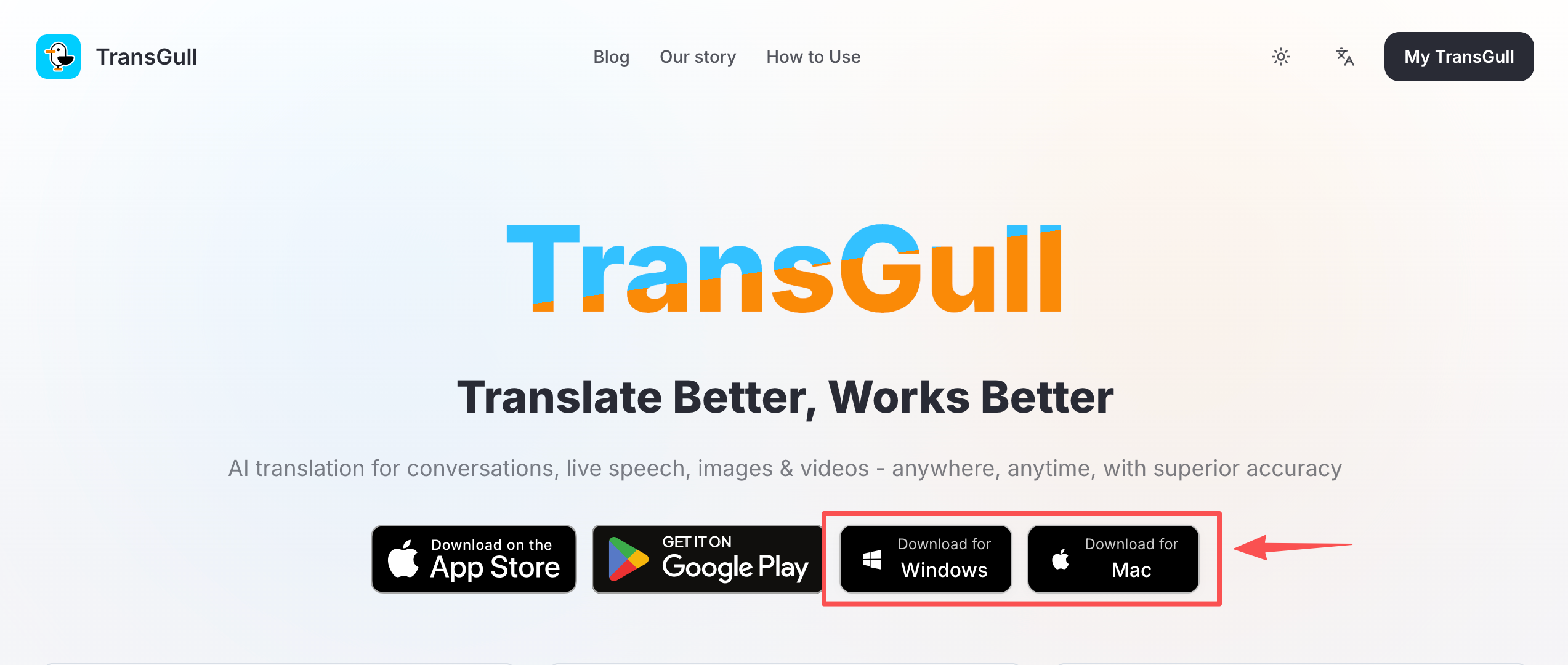
After installation, the TransGull application interface will appear:
Need help installing?
See the full Installation Guide for detailed instructions, including how to run TransGull on Linux via Wine.
Step 2: Create a TransGull Account
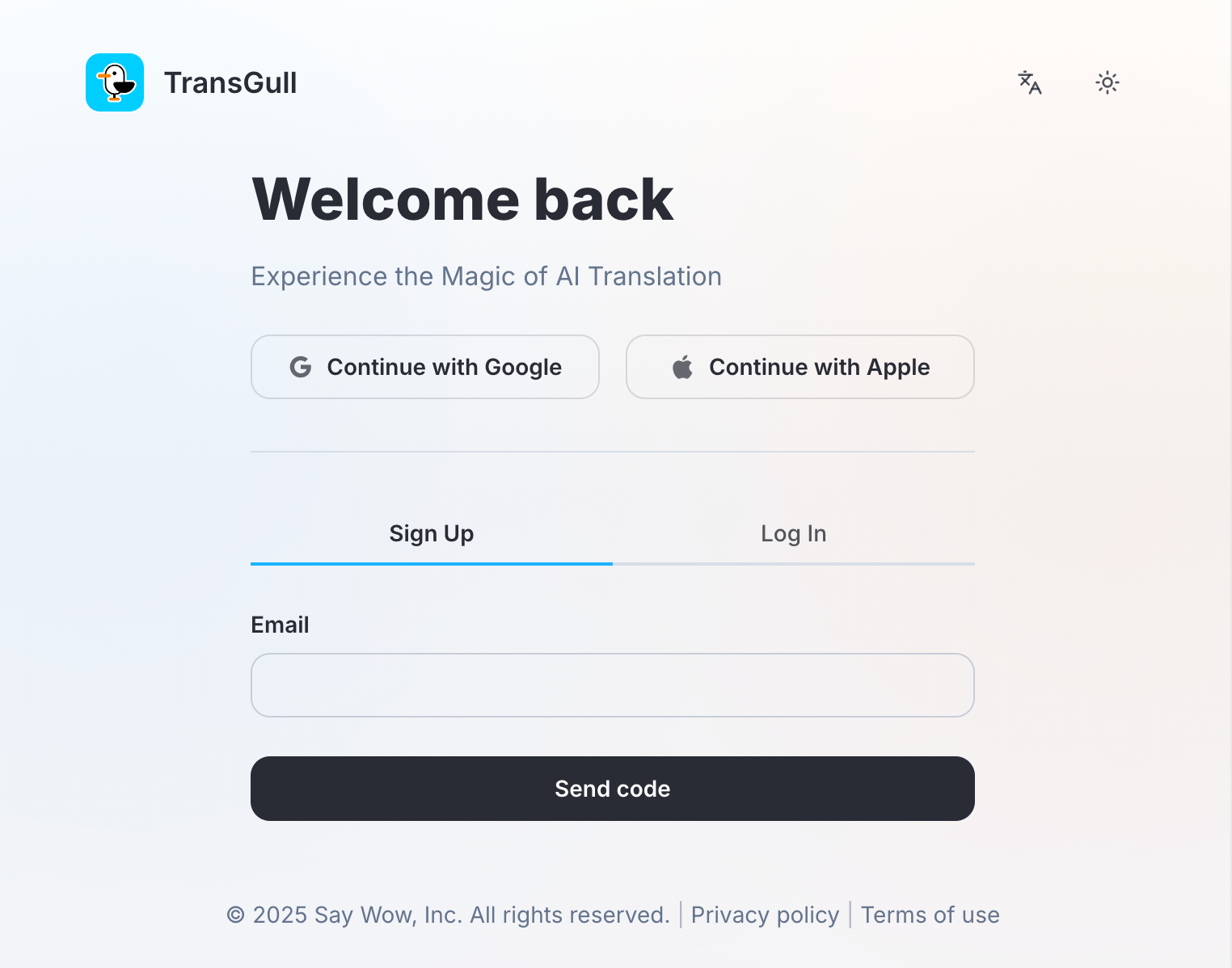
If you haven't already, create your TransGull account:
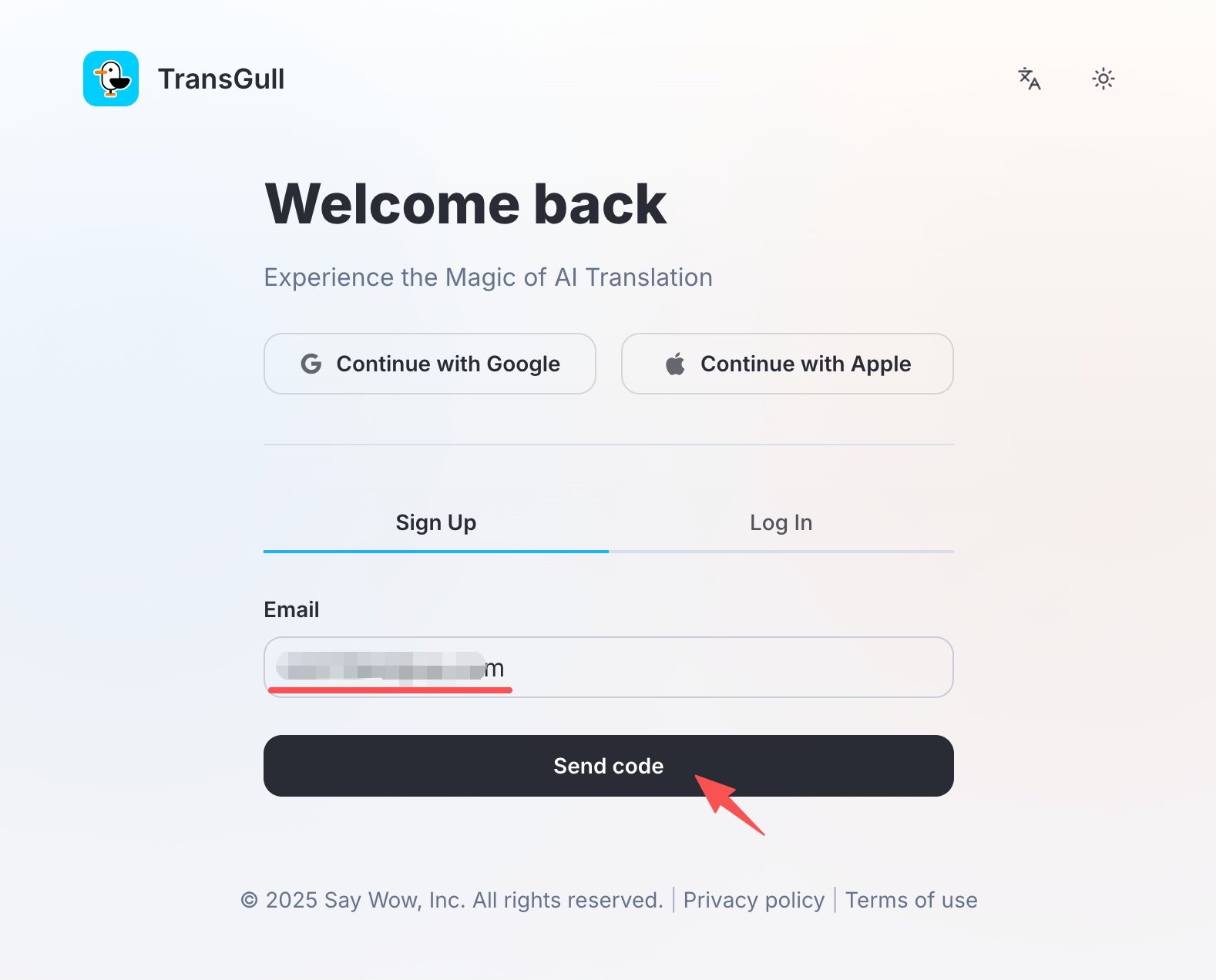
Step 1: Click "Sign Up", enter your email address, and click "Send Code" to start creating a new account.
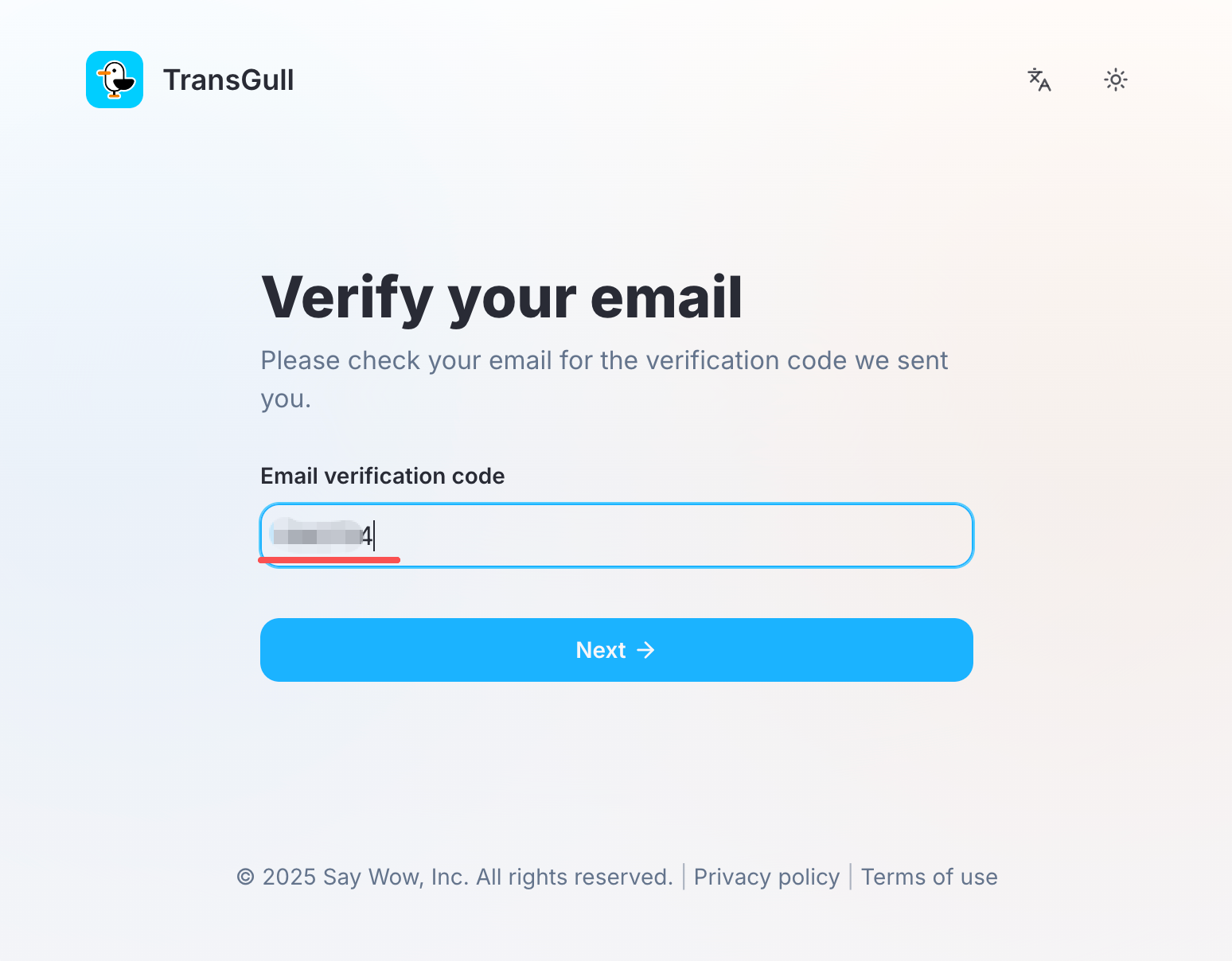
Step 2: Enter the email verification code (the system will automatically send the code to your email inbox; please check your email).
Step 3: Set your password and click "Save" to complete the setup.
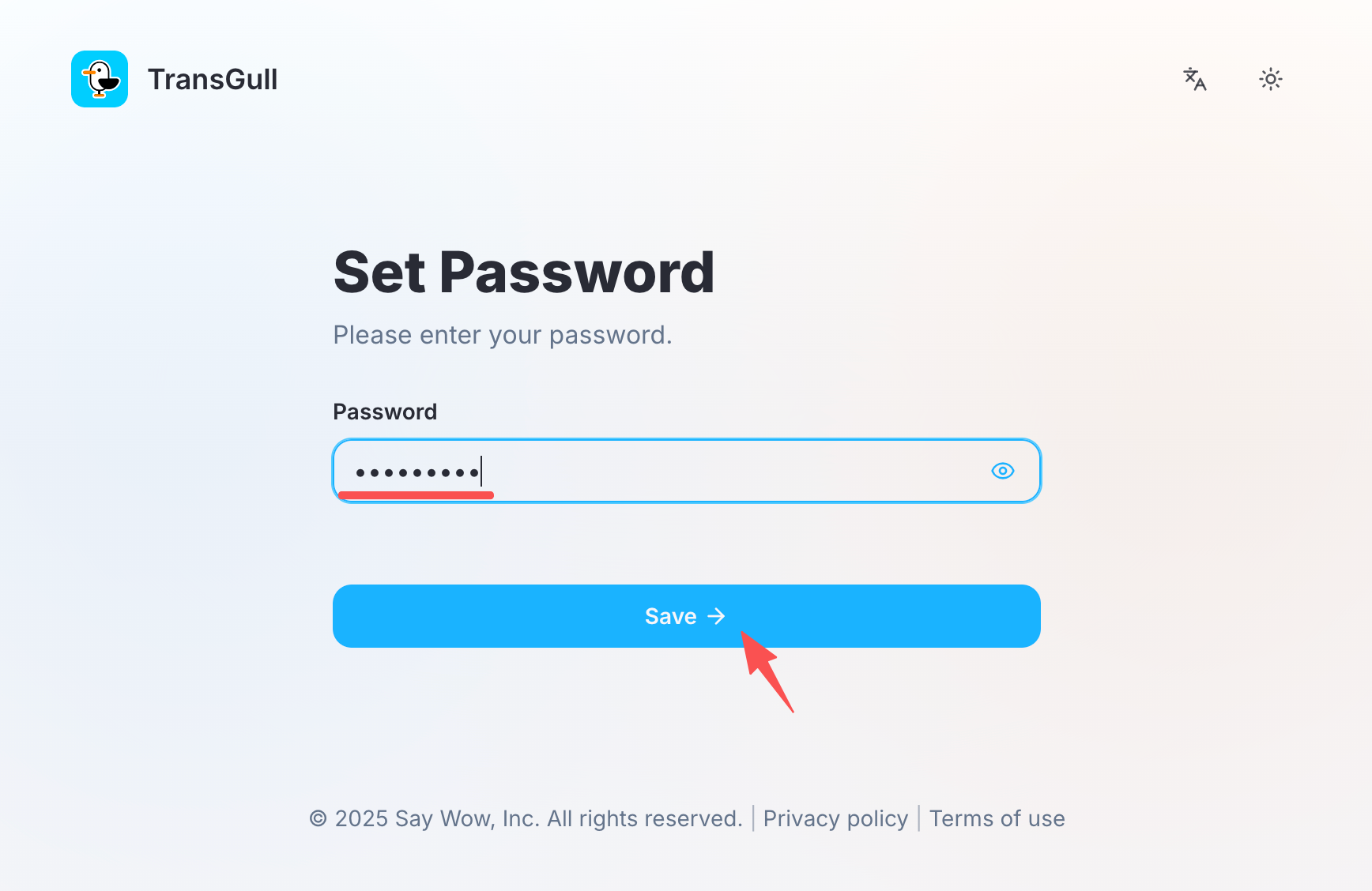
For detailed instructions, see Account Setup.
Step 3: Open Microsoft Teams
Open the Microsoft Teams desktop client on your computer.
Recommended
Use the Microsoft Teams desktop application rather than the web version for the best audio capture experience.
Step 4: Configure TransGull for Simultaneous Interpretation
After signing into your account, enter the TransGull main interface:
4.1 Select the Interpretation Mode
- Select "Simultaneous Interpretation" ➡️ select "Two-Way Interpretation"
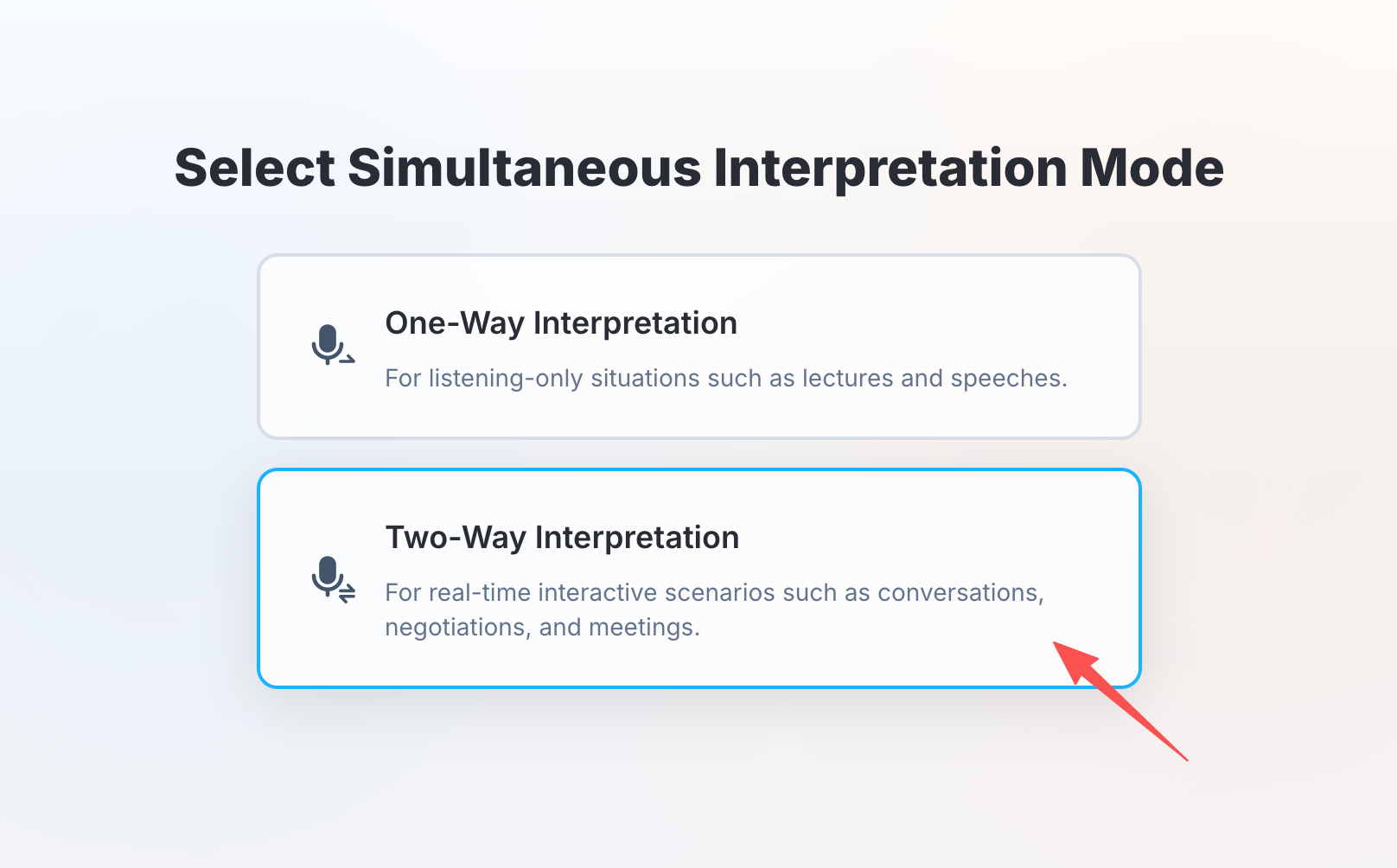
4.2 Select the Audio Source
- Select "Activities on This Computer"
- Choose "Record Audio from Selected App" and select "Microsoft Teams"
- Click "Confirm" to start
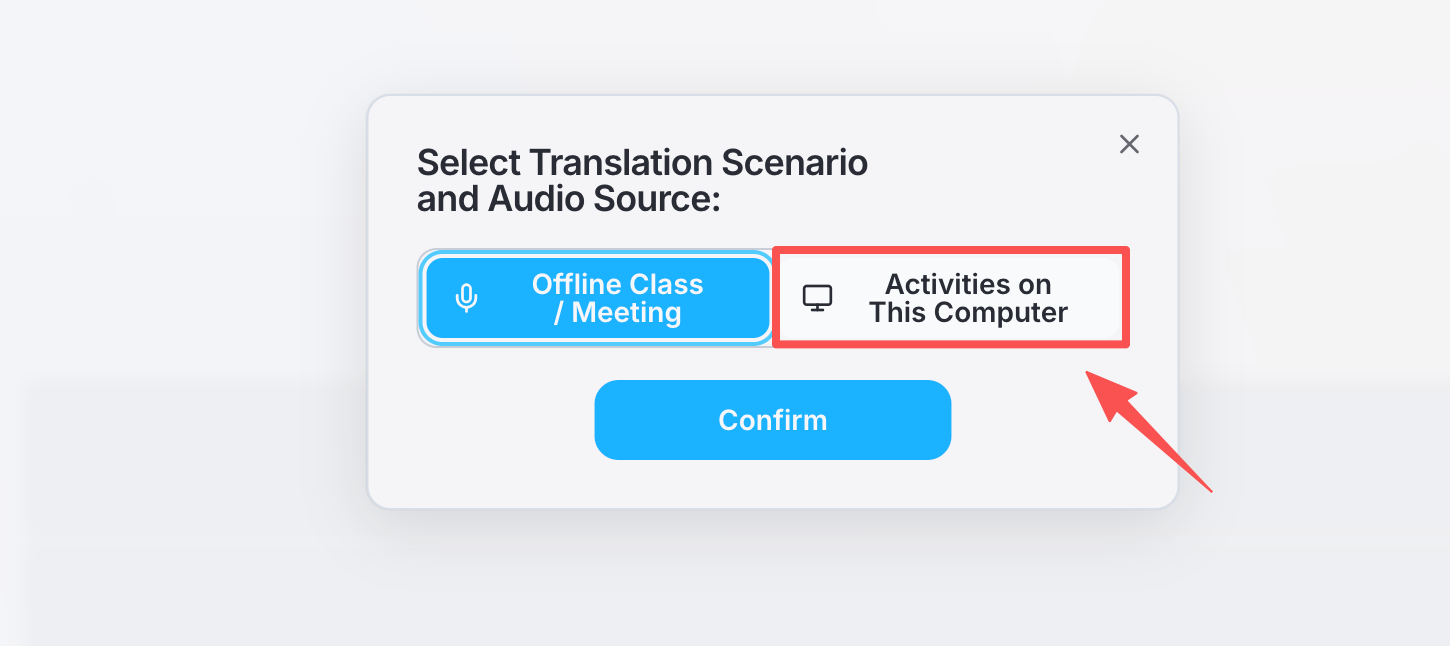
Translate your own voice too
If you want your own voice to be translated as well, wear headphones and select "Also Record My Microphone".
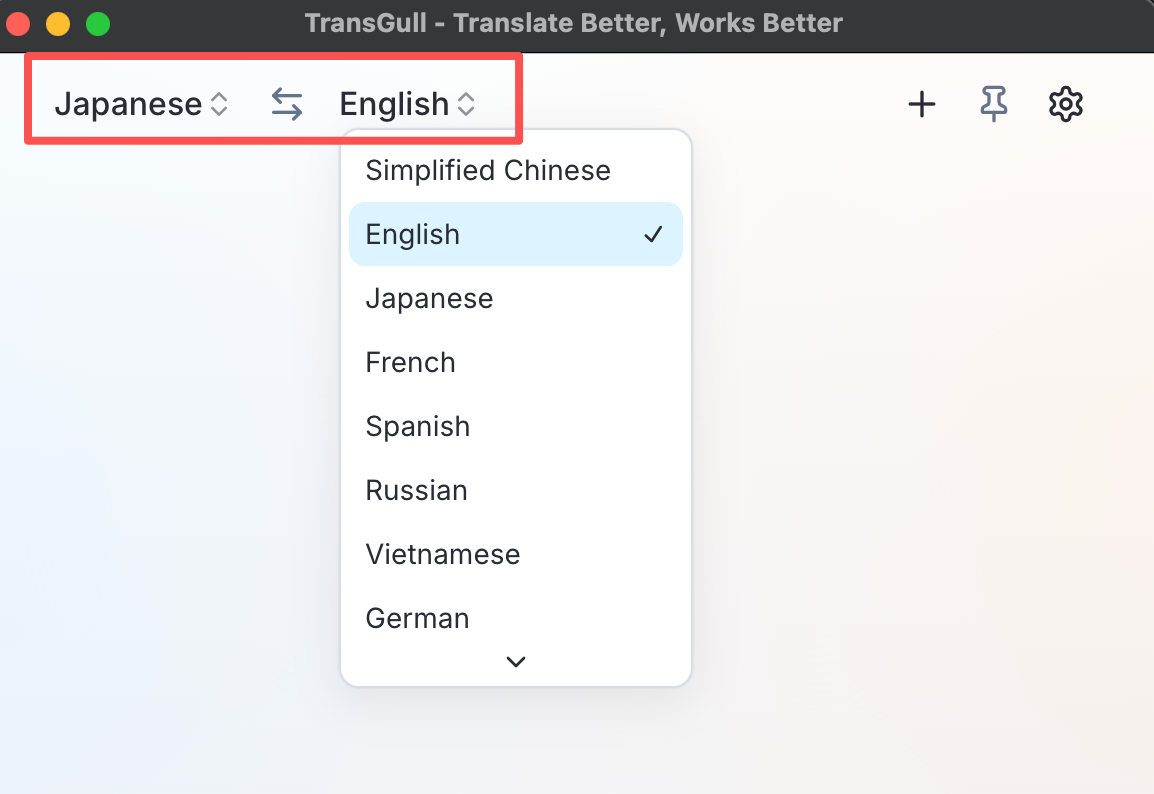
4.3 Select Languages
- Set the Source Language (the language being spoken in the meeting)
- Set the Target Language (the subtitle language you want to see)
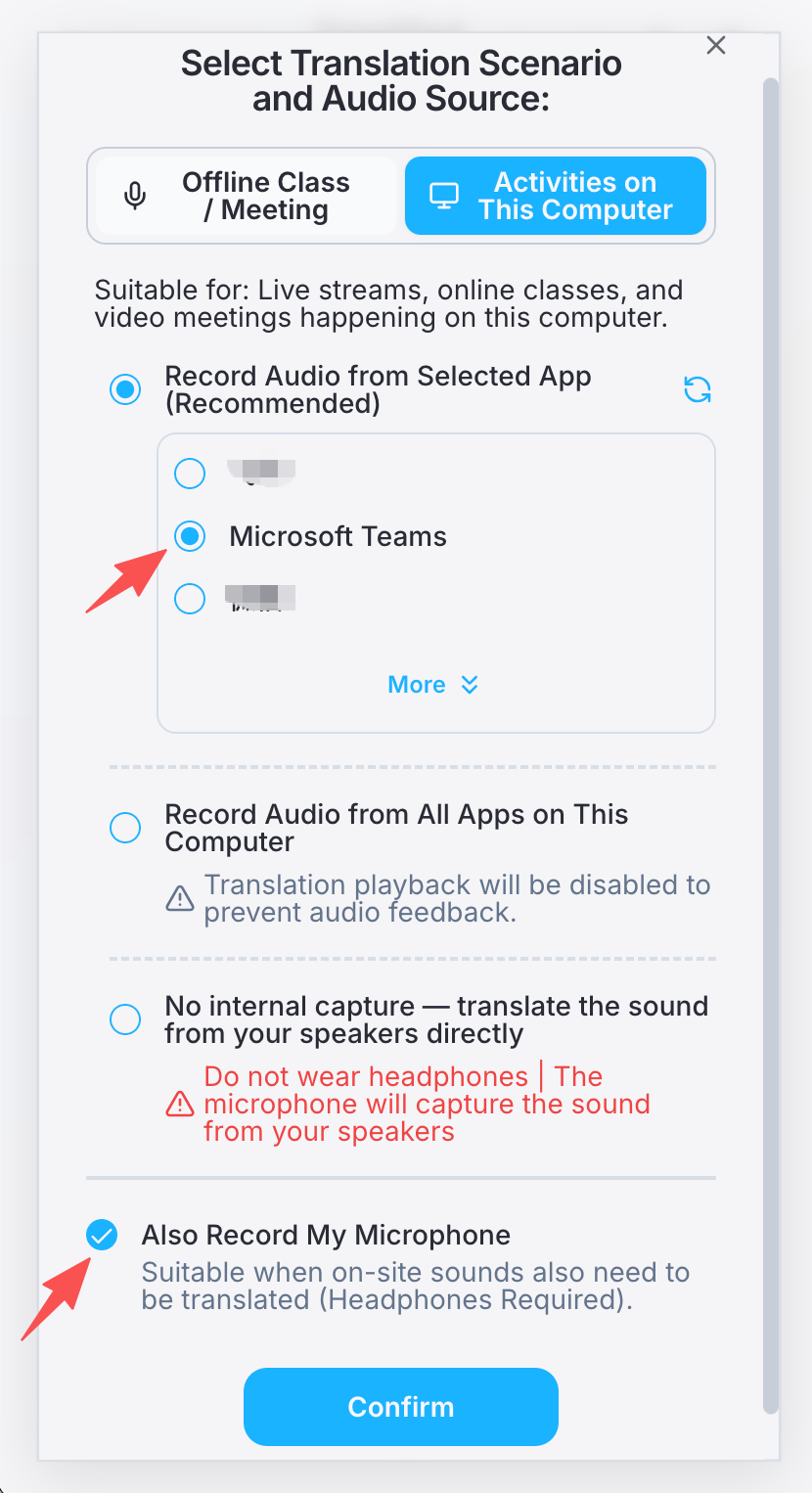
💡 TransGull supports over 21 languages and multiple accents, making cross-language communication easy.
4.4 Start Translation
After completing the setup, click the ▶️ Start button to begin real-time translation.
Important
AI real-time subtitles will automatically appear once the Microsoft Teams meeting audio starts playing. Make sure to check your computer's Microphone permissions — both TransGull and Microsoft Teams must be allowed to access your microphone.
Step 5: Join or Start a Microsoft Teams Meeting
Once the meeting starts and audio is detected, TransGull will immediately display real-time translated subtitles.
For example, if the source language is Spanish and the target language is English, you will see bilingual subtitles showing both languages side by side:
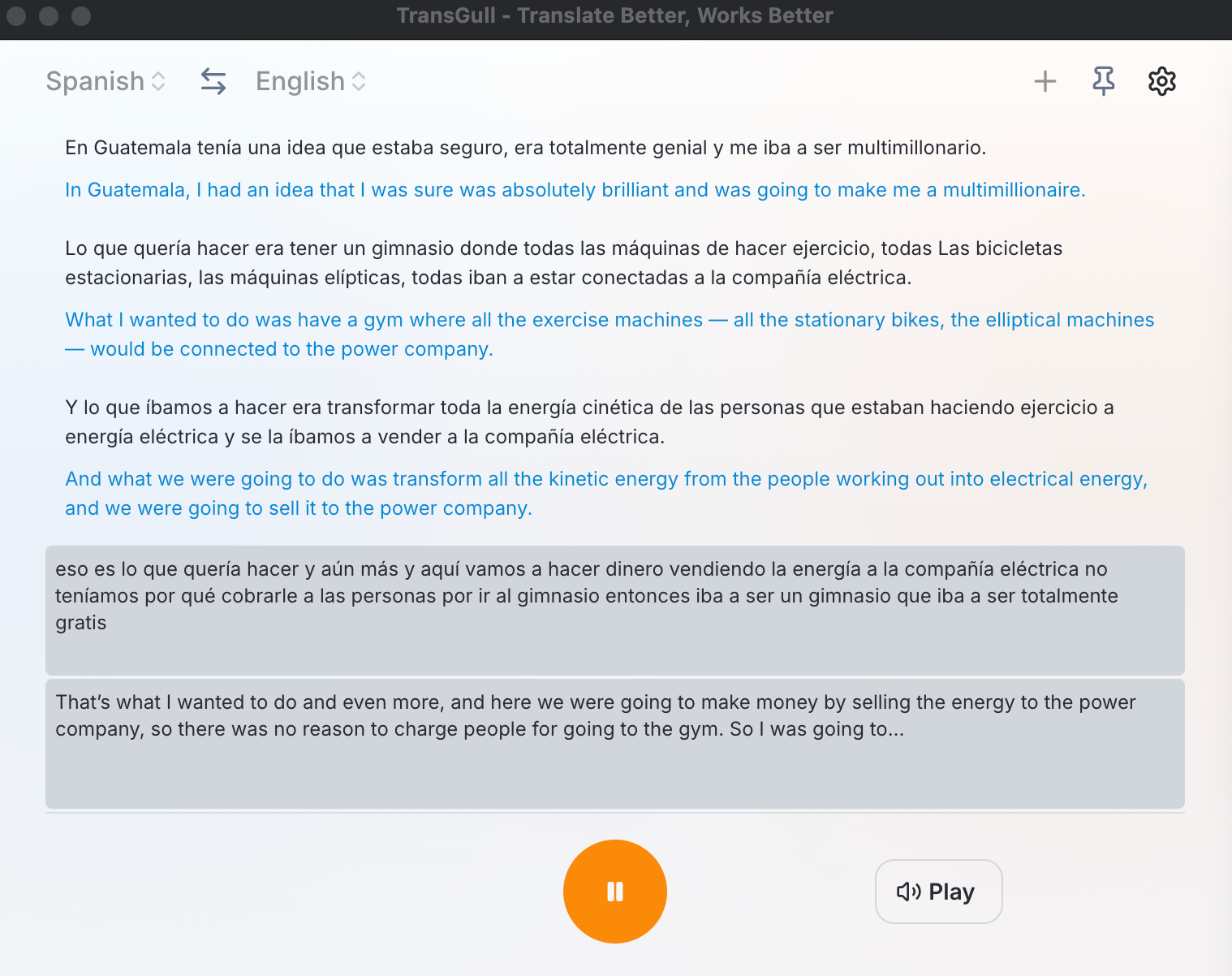
🎉 That's it! You can now seamlessly participate in Microsoft Teams meetings, business discussions, or international conferences in any language.
How to Obtain Translated Subtitle Text
You can easily copy all translated subtitles for meeting notes:
1) First, click "Pause ⏸️"
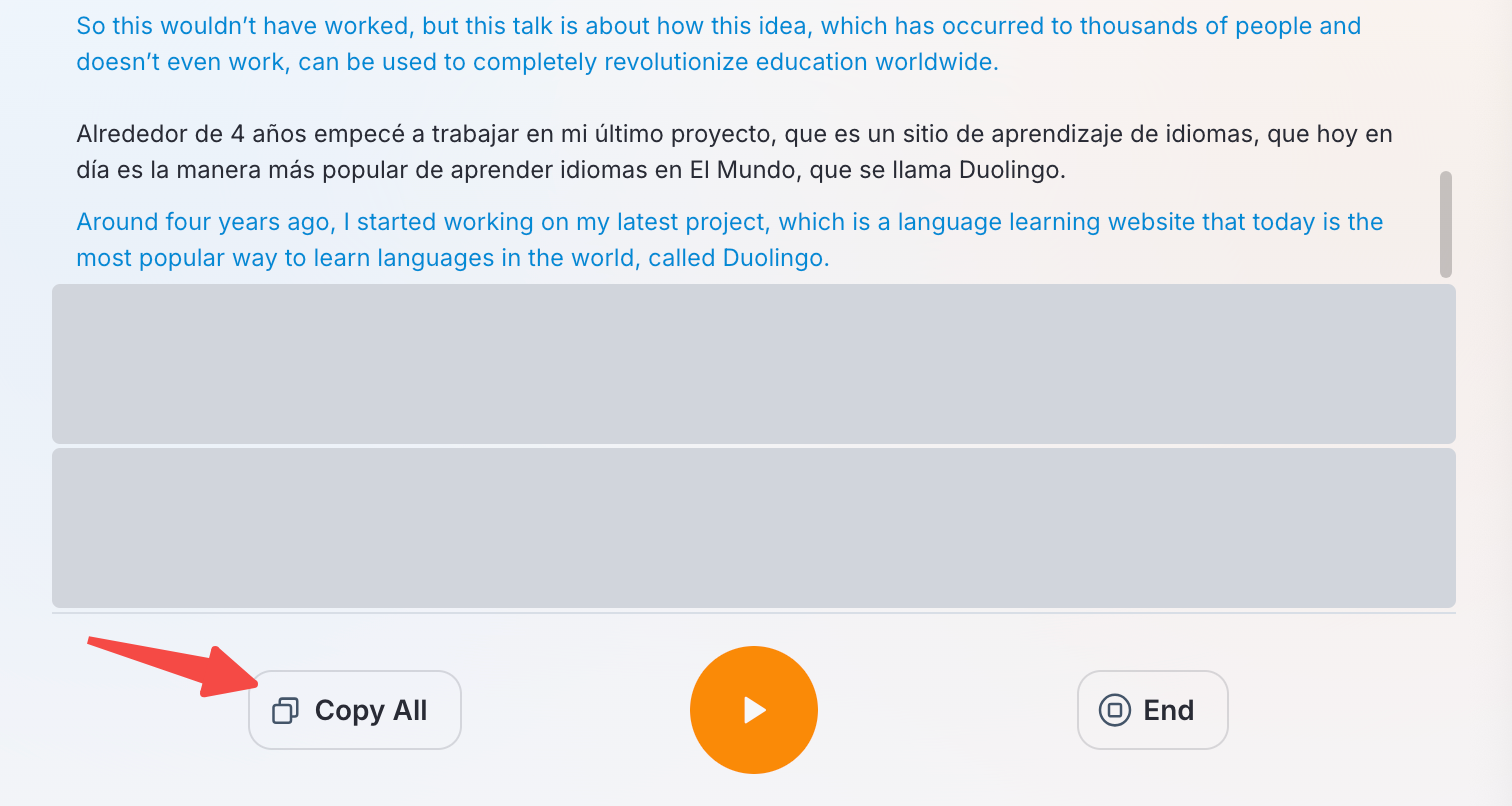
2) Then click "Copy All" — the content will be automatically copied to the clipboard.

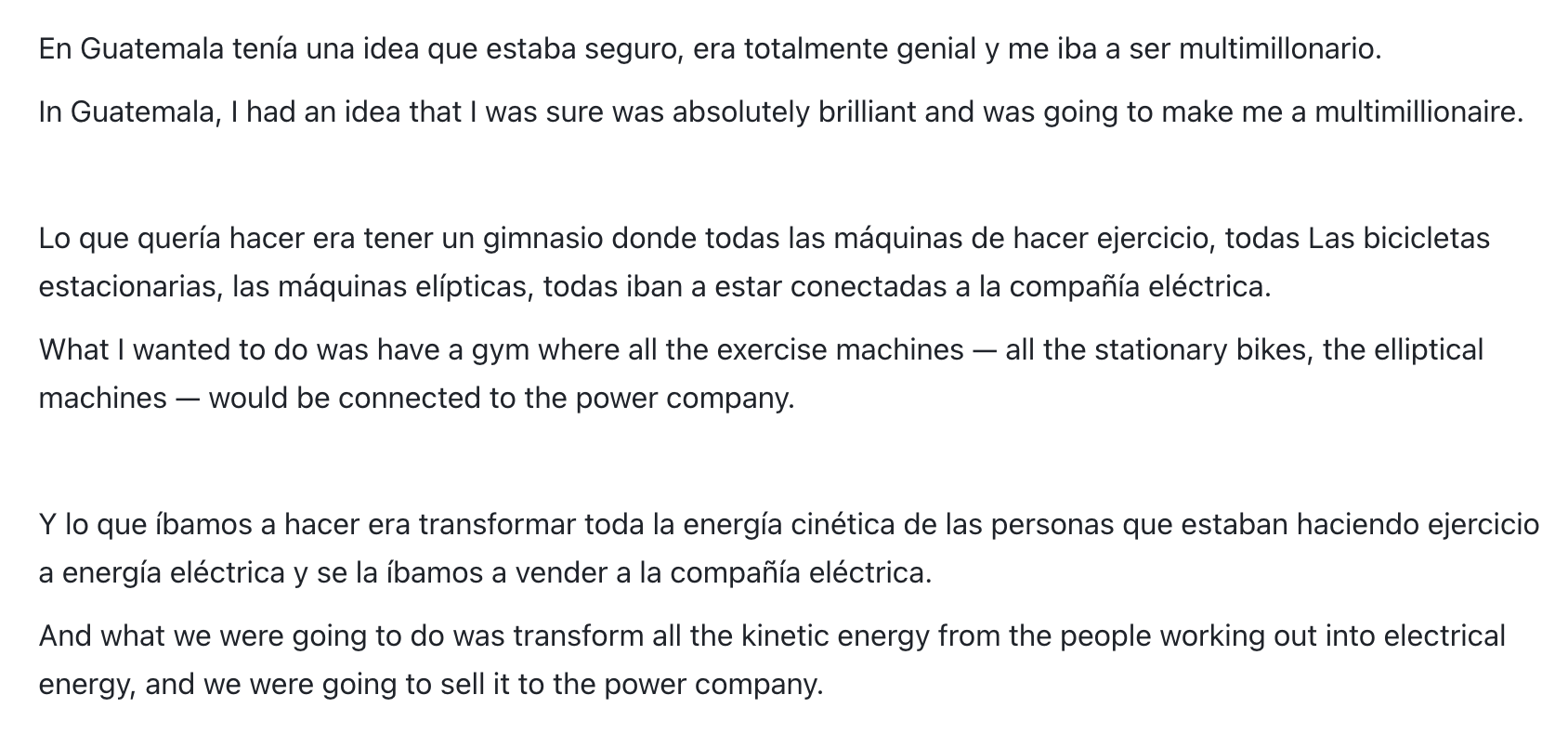
3) Switch to another app and paste the text directly.
Tip
TransGull automatically copies bilingual subtitle text, making meeting notes quick and easy!
How to Play Translated Content
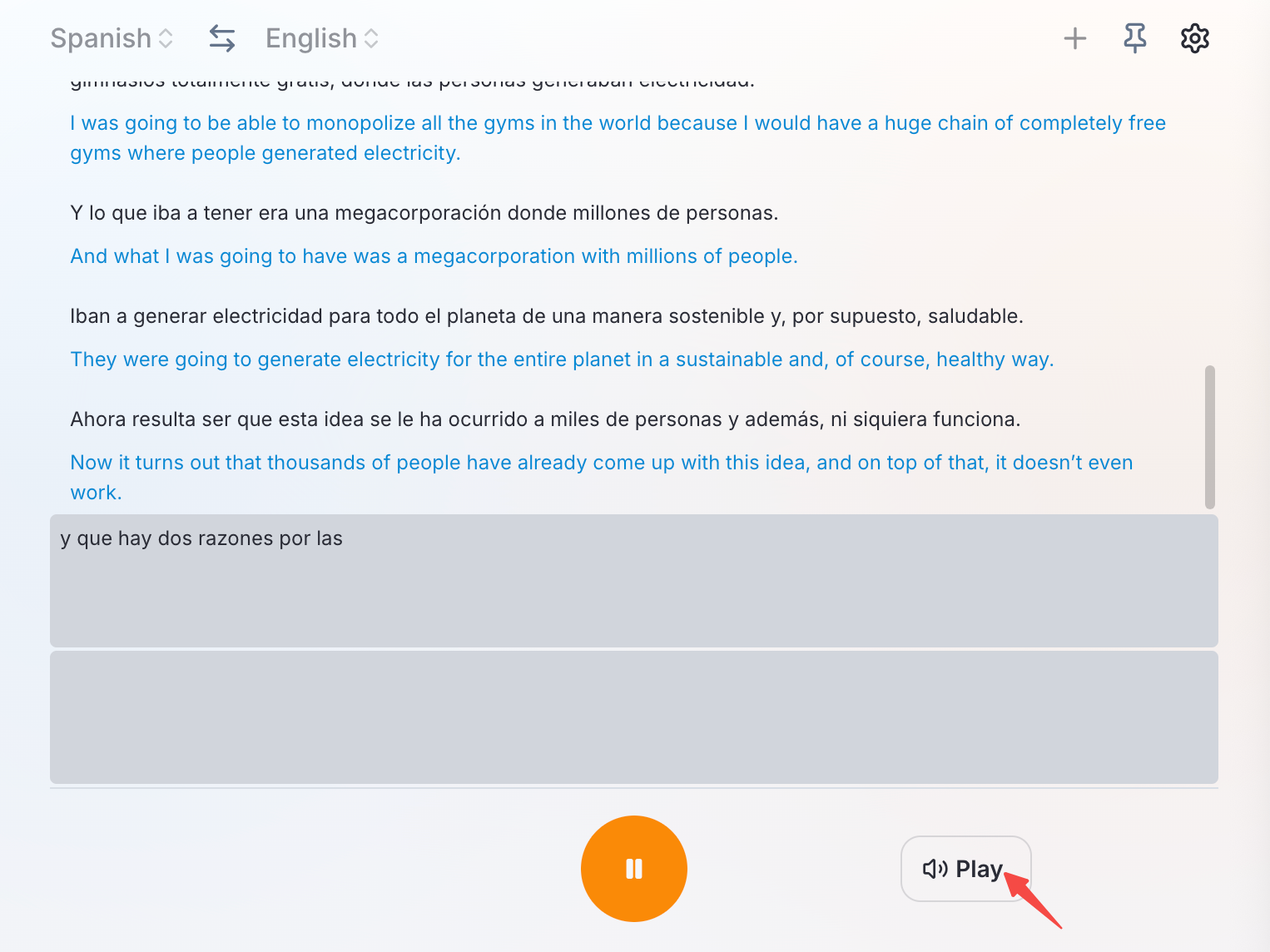
During translation, you can click "Play" in the bottom-right corner, and TransGull will automatically play the translated audio.
Note
The "Play" button works as a toggle, not a one-time play button. Once enabled, all newly translated content will be played automatically — it does not replay content that was already translated before enabling playback.
Troubleshooting
| Issue | Solution |
|---|---|
| Subtitles not appearing | Ensure Teams audio is playing and TransGull has microphone permissions |
| No audio from translated content | Click "Play" to toggle audio playback on |
| Translation quality is poor | Verify the correct source language is selected; check speaker's microphone quality |
| TransGull can't find Microsoft Teams | Make sure the Teams desktop app is open before starting TransGull |