Installation
TransGull is available on multiple platforms. Follow the instructions below for your operating system.
Supported Platforms
| Platform | Download |
|---|---|
| Windows (x64) | Download from transgull.com |
| macOS | Download from transgull.com |
| iOS | App Store |
| Android | Google Play |
Desktop Installation (Windows / macOS)
- Go to transgull.com
- Download the desktop application for your operating system
- Run the installer and follow the on-screen instructions
- Once installed, open the TransGull application
After installation, the TransGull main interface will appear:
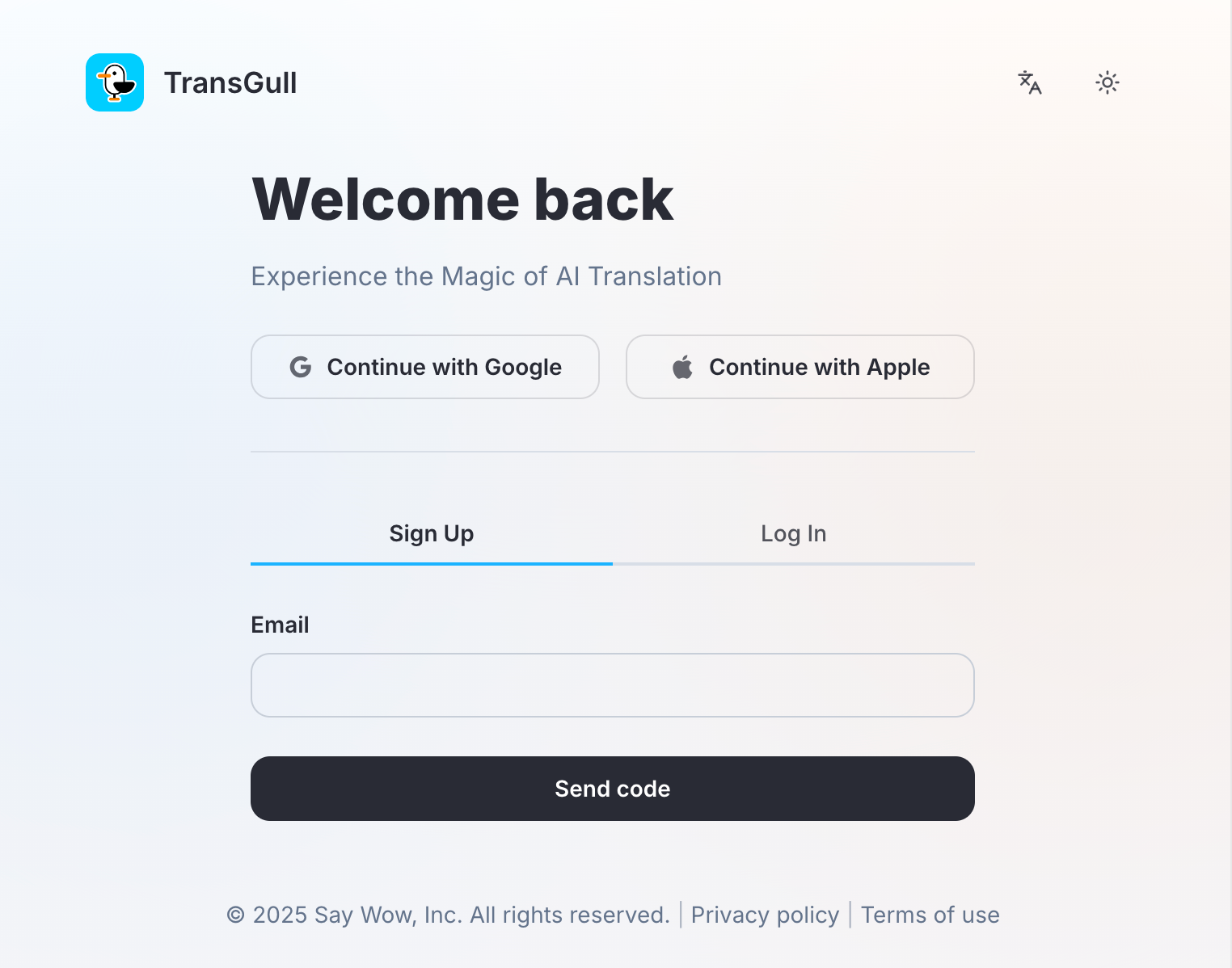
You can now proceed to create your account.
Linux Installation (via Wine)
TransGull does not currently offer a native Linux build. However, you can run the Windows version using Wine.
Prerequisites
- Wine 9.0 or later installed on your system
- The
winbindpackage for NTLM authentication support
Step 1: Install Wine and Dependencies
sudo apt update
sudo apt install -y wine winbind
sudo dnf install wine samba-winbind
sudo pacman -S wine samba
Step 2: Download the Windows Installer
Download the Windows (x64) installer from transgull.com. The file will be named something like:
TransGull_desktop_v1.3.2_win_x64.exe
Step 3: Run the Installer
wine ~/Downloads/TransGull_desktop_v1.3.2_win_x64.exe
Follow the graphical installer wizard to complete the installation.
Step 4: Launch TransGull
wine ~/.wine/drive_c/users/$USER/AppData/Local/Programs/TransGull/TransGull.exe --no-sandbox
Create a shortcut alias
Add this to your ~/.bashrc for quick access:
alias transgull="wine ~/.wine/drive_c/users/\$USER/AppData/Local/Programs/TransGull/TransGull.exe --no-sandbox"
Then reload with source ~/.bashrc and simply run transgull from the terminal.
Known Issues on Linux
- You may see NTLM authentication warnings in the terminal — install
winbindto resolve them. - The application window may start minimized to the system tray. Check your tray icons if the window doesn't appear.
Next Steps
Once TransGull is installed, proceed to create your account.